
How to Pay Using Interac e-Transfer Request
Follow these steps to complete your payment securely and easily.
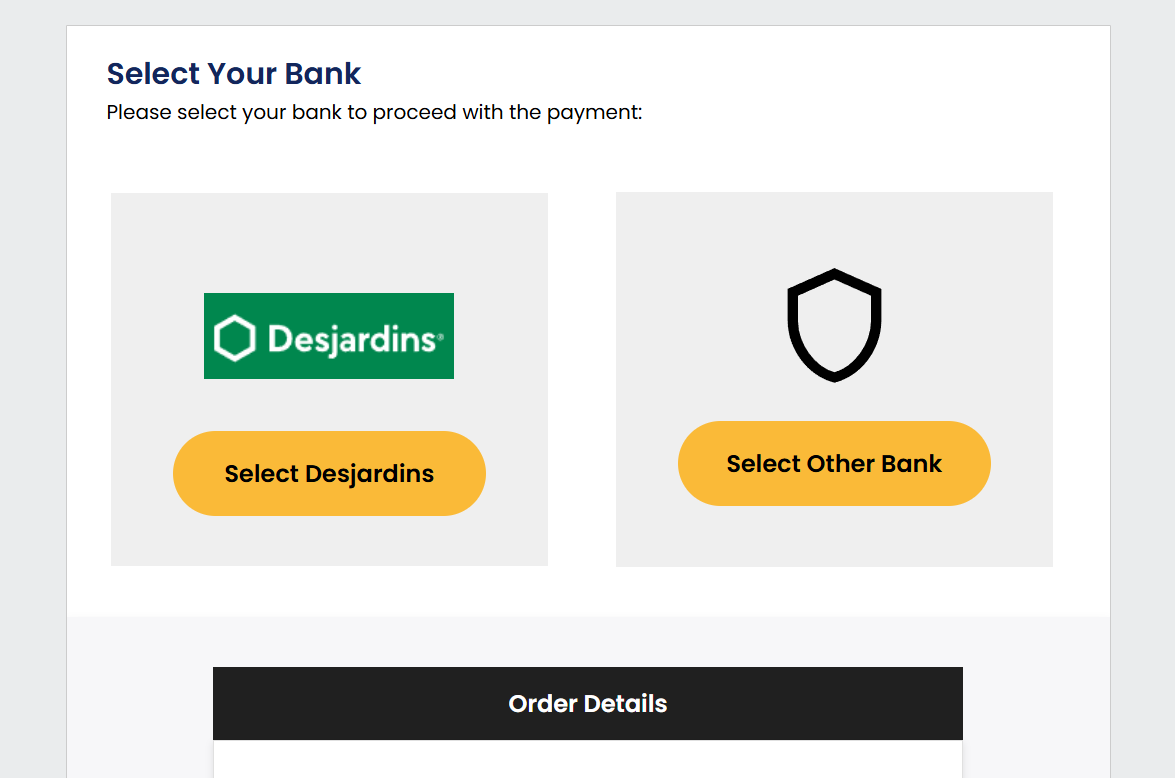
Step 1: Choose Your Bank
On this screen, you’ll be asked to select your bank to continue with the payment.
-
If you bank with Desjardins, click the “Select Desjardins” button.
-
For all other banks (like TD, RBC, Scotiabank, CIBC etc.) , click “Select Other Bank”.
After clicking your option, you’ll be redirected to your bank’s online login page to securely approve the Interac Request.
Step 2: Start Payment
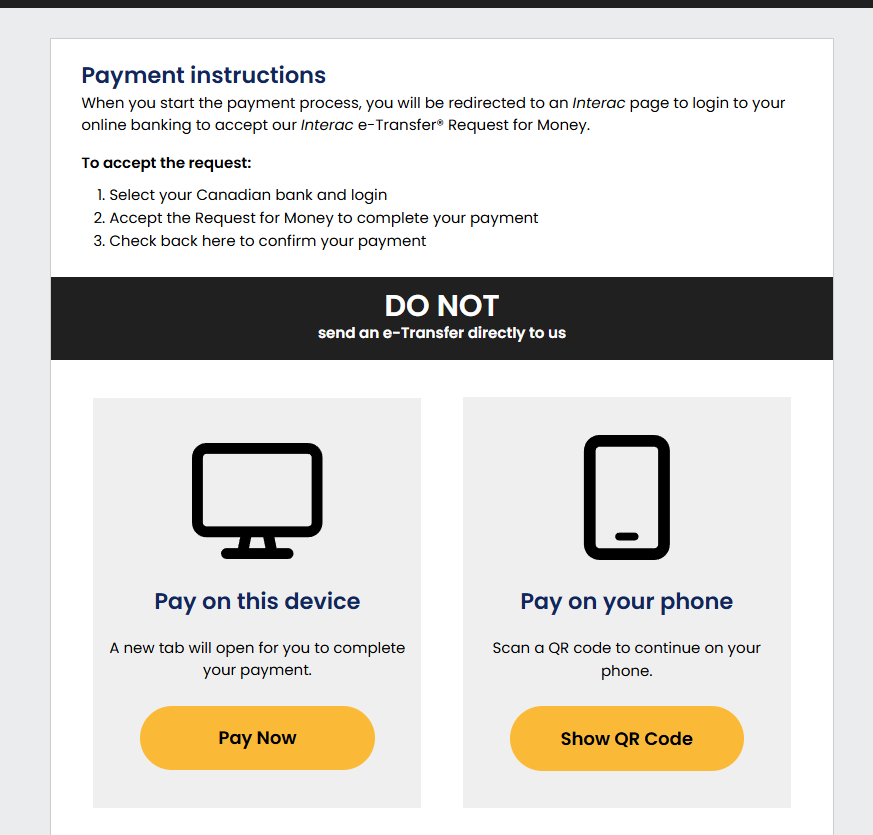
After placing your order, you’ll be redirected to a payment page showing the total amount and sender details.
Click “Pay Now” on your device or scan the QR code to pay on your phone.
Step 3: Select Your Bank
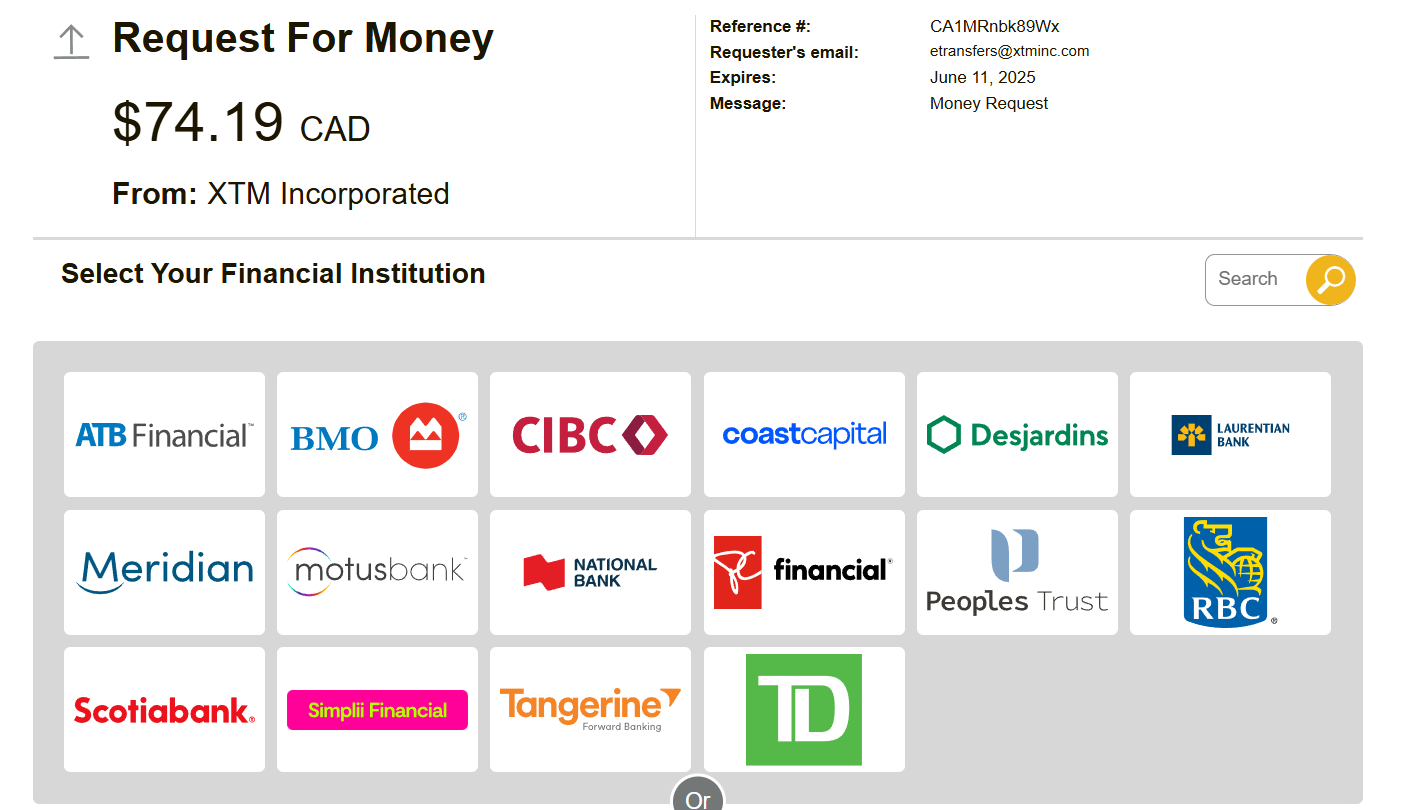
You’ll see a screen like this:
-
Click your bank’s logo (e.g., TD, BMO, RBC, Scotiabank, etc.)
-
If you don’t see it, click “Select Other Bank” or choose by province for credit unions.
Step 4: Log In to Your Online Banking
You’ll be redirected to your bank’s login page.
-
Sign in with your regular online banking credentials.
-
You’ll see a “Request for Money” from our payment provider (e.g., XTM Incorporated).
-
Confirm the amount and click Accept.
Step 5: Confirm Payment
After accepting the e-Transfer:
-
You’ll be redirected back to our website.
-
A message will confirm your payment is complete.
Important Notes
-
DO NOT send a manual e-Transfer to our email. Only accept the official Interac Request.
-
This is a secure and automated method – no password is needed.
-
If you leave the payment page, check your email to re-open it and complete payment.